Groups enable Facebook’s 400 million monthly active users to congregate and interact in discussions related to a subject, even if they aren’t “friends” with all (or even any) of the other members.
Groups in Facebook are different from Pages and even personal Profiles.
- Profiles are for individuals…for real people. These are the basic user accounts everyone from students to grandparents create. You cannot create a Group unless you have first joined Facebook by creating your personal profile.
- Pages are for organizations, or brands. In our Mayo Clinic context, we have one Facebook “fan” page.
- Groups are the means to create connections among people with common interests, and are the way to create communities in Facebook. The rest of this post will take you through the process of creating a Facebook group.
I established the Facebook Group Users Group as a way for people to get guidance on setting up Facebook groups. Please feel free to join it. In a moment, I will take you step-by-step through the process of setting up a group, using the Facebook Group Users Group as an example.
But first, here are some of the key issues you need to decide when setting up your group:
Should it be limited to one of your networks, or open to all of Facebook?
This is a different question than the Open/Closed/Secret one below. If you limit the group to only the Mayo Clinic College of Medicine network, for instance, only people with a Mayo.edu email address will be able to join. Once you decide, you can’t change your mind, so I generally recommend making it open to all of Facebook. You can still limit access by making the group Closed or Secret, but once you’ve chosen to limit to a network you can’t later make it more open.
Should it be Open, Closed or Secret?
- An Open group is the easiest to administer, because anyone can join it without being invited or getting approval from a group administrator. If you want to build a group quickly and if confidentiality of information shared isn’t a concern, open is the way to go.
- Anyone can see basic information about a Closed group (and can request to join), but wall posts, discussions and photos are limited to members. Group creators or administrators can invite their Facebook friends to join. If you have some need to limit access to the conversations and group membership, Closed is a good option. As administrator, you will get a Facebook message whenever someone requests to join, which you can approve or deny.
- A Secret group is the most confidential option, but also the most difficult to form. The only way people can join is by being invited, because the group won’t show up in public listings or on anyone’s individual profile. To invite someone to the group, you need to be their friend in Facebook (or invite them via email through the group.)
One short-term option you can use is to start the group as Open or Closed, and then once everyone has joined you can switch it to Secret.
How to set up your Facebook Group
Note: Click any of the images below to see a larger version.
From your Home page in Facebook, click on the Groups link in the left column navigation:
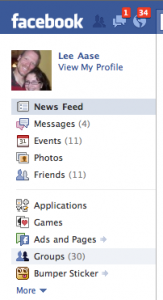
Then at the top of the page you will see a button that says “Create a Group.” Click it.

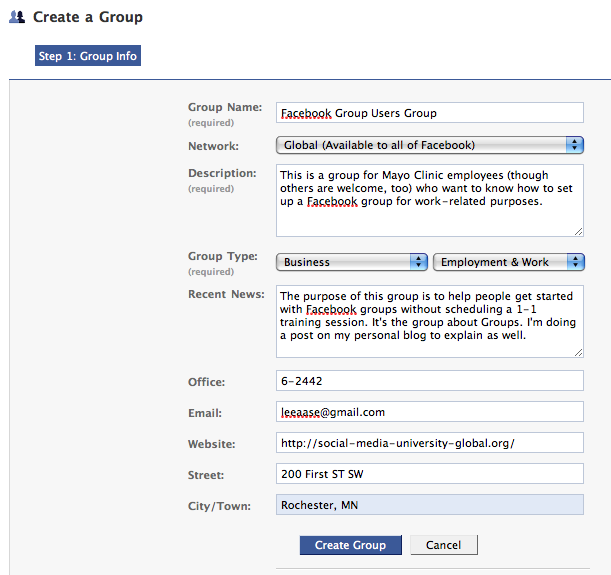
This will bring you to the first page of group set-up, for which I have inserted below the screen shot of the settings I used for the Facebook Group Users Group.
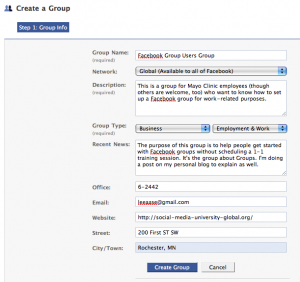
A few points:
- Except in unusual circumstances, you will want to make the group “Global (Available to all of Facebook) under the Network setting. You can still manage who is allowed to be a member of the group via the Closed or Secret settings in the next step, but once you limit to a particular network you are forever barring people outside of that network from joining. If, however, you want a group to only be available to members from your workplace (or school), you could limit to one of your networks. But once you decide that, you can’t change it.
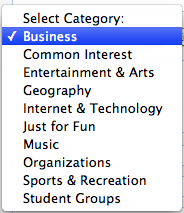
- Take time to choose your Group Type and sub-type. With each of the Categories, there are different options for sup-type. Here is a listing of the Categories:
- Choose a meaningful title and add a good description of the group. This will make it more likely that if friends of your group members see the group, they will find it interesting and decide to join.
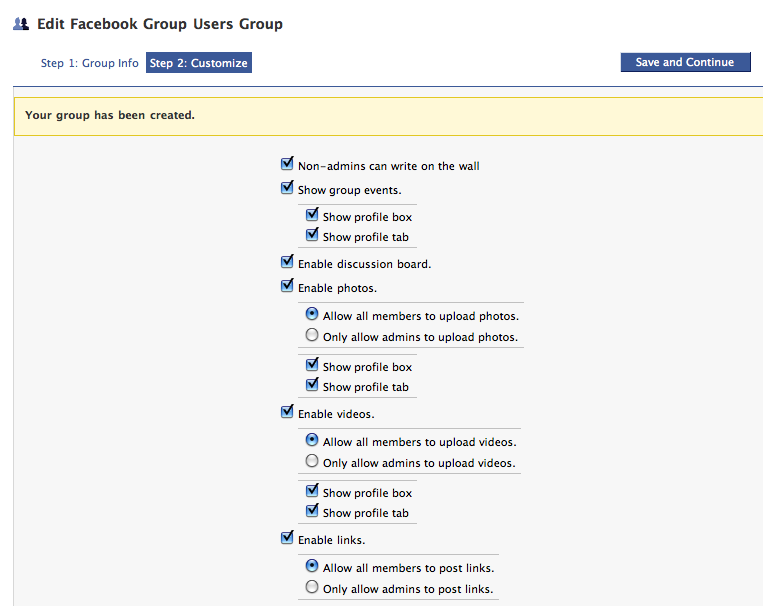
When you click the “Create Group” button on the bottom of the first page, you will go to a second page that enables you to set options for who is able to post to the group’s Wall, or upload photos and videos. Unless you have a specific reason to be more exclusive, I recommend enabling anyone who is a member of the group to write on the wall and upload photos and video.
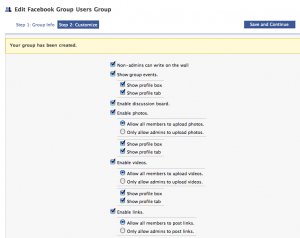
The goal is interaction, after all.
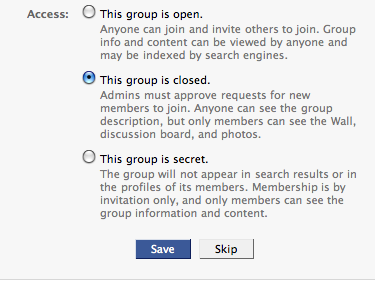
On this same page, you will be able to choose whether the group is Open, Closed or Secret (as described above.) Here is what that choice looks like:
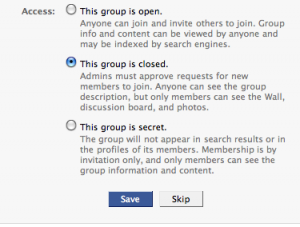
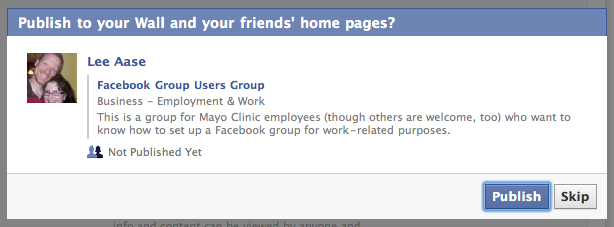
When you hit the “Save” button, you will be asked whether you want to publish a notification to the wall of your personal Profile and to your friends’ home pages. It will look like this:

If you want the world to know that you have created this group so others will be encouraged to join, hit the Publish button. If you only expect to invite a limited number of people to join (as in the example of an online focus group or patient support group), hit “Skip.”
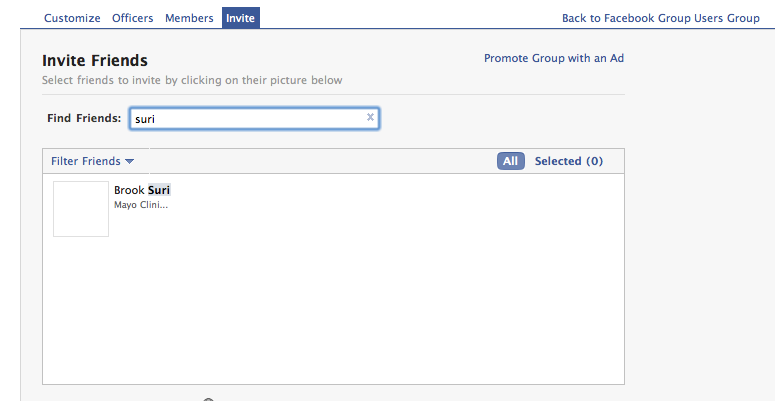
In Step 3, you get to invite your friends to join the group.

Just start typing their names (or you also can invite an entire friend list), and when their names show up you can click on their picture to select them. After you have selected all those you would like to invite (and added any message describing the group and why you invited them), you can send the invitations and go back to the front of the Group.
From there, you can upload a picture to represent the group, as you see below.

It’s a pretty straightforward interface; I decided for the Facebook Group Users Group to upload a screen shot of the first step in creating a group. The picture you choose should be meaningful for your group.
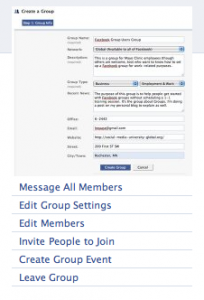
That’s really all there is to creating a group in Facebook. In a separate post, I will highlight some of the basic interaction steps within a group, and how you can further customize it to be most useful.