The Evolution of the Revolution

I’m in Seattle this morning for #SwedishRagan, and sharing our experience with social media at Mayo Clinic, as well as information about our Center for Social Media and the Social Media Health Network. As is my custom, I will move really quickly through lots of slides in my presentation, so I post them here for reference. This helps participants engage and relax instead of furiously scribbling notes.

It also lets me show and tell instead of just telling. If a picture is worth a thousand words, showing this many slides may be one way I can keep up with @SeattleMamaDoc. 😉

By the way, she’s knocking it out of the park in her presentation this morning.

Here’s what I plan to cover:

Networking with Nurses

Here are slides from my presentation to the Scripps Oncology Nursing Advanced Practice course in San Diego. One of my points is that the title I was given for the presentation, To Network or Not, is really a false choice.

Given the growth of social media and social networking, it isn’t a question of whether health care providers will participate, but rather how they will, and how soon.

Facebook 110: Protecting Privacy in Facebook

In “What’s Wrong with this Picture?” I made an analogy that relates to a situation I think is all too common: people who express anxiety about their privacy in Facebook, but who haven’t taken advantage of the privacy protections Facebook offers.

It’s like playing goalie in the National Hockey League without a mask, and then complaining about facial injuries.

So in this course I’m going to provide a step-by-step process for using Facebook’s privacy settings to accomplish your objectives in using the site, while also giving you comfort that you are limiting access to your personal data.

I’m trying a little different approach this time, in that I am embedding slides with the graphics, but instead of an audio track or a video to accompany, I’m using text with links to narrate each slide. You may want to consider opening another window so you can have one showing the slides while you scroll through the text narration in the other. (Open another copy of this post). I would also recommend you open a third window and sign in to Facebook, so you can apply settings on your personal profile as you learn by switching among the three windows.

Slide 1: As per my analogy, this is a shot of former NHL goalie Gump Worsely, sans mask, with a puck hurtling toward his face. In the next 9 slides I will show you how to adjust your personal protections to avoid a similar problem in Facebook.

Slide 2: To adjust your privacy settings, just go under your Account tab in the upper right corner of your Facebook profile. Or you can just click this link. At the top of the page you will see a message that describe the kinds of information that are available to everyone, along with a link that lets you modify some other elements everyone can see by default. Click that View Settings link.

Slide 3: On this slide you see the basic settings for what the half-billion plus users of Facebook get to see on your profile. You will see rationale for each element, and why you would want to make that information available.

Slide 4: For each of the types of information, you can decide to limit access. You can limit to your networks, to your friends and networks, to friends of friends, or friends only. Then if you click the Preview my Profile button in the upper right, you will see something like the next slide.

Slide 5: This is how a most people see my profile on Facebook. Yours would look somewhat different if you decide to limit access to one or more categories of information. But the point is, you can click the Preview my Profile button to see what you’re making available. And if you don’t like it, you can change it.

Slide 6: Now, going back to your main privacy settings page, let’s look at some of the other information you can share or choose to restrict. This slide shows the categories of information, and highlights that if you choose  the Everyone option it will all be available to the world. I don’t recommend that.

Slide 7: The next broad option, Friends of Friends, makes several items available to people who are friends with people who are your friends, while leaving other categories (such as your contact information) only open to your friends.

Slide 8: If you choose Friends Only, you can limit access to this information to only those you have accepted as friends.

Slide 9: These are the settings Facebook recommends. I personally think they are pretty reasonable for most people, but the key is you get to decide just how much of a mask you want to wear.

Choose whichever of the basic frameworks you think is closest to what you want, and then hit the Apply These Settings button.

This is the end of the first course in the Protecting Privacy series on SMUG. In the next course, we’ll look at further customizing your mask.
Facebook for Business: The Video

A week ago today I participated in a Rochester Chamber of Commerce seminar on Facebook for Business. I led off the discussion and then took lots of notes from Alan De Keyrel’s keynote presentation, which I summarized in this post.

Now Alan’s company has posted the video from the event so you can see it for yourself. Since it’s on Vimeo, I’ve embedded it below:

Alen De Keyrel on Facebook for Business from CWS on Vimeo.

Check out the CWS site for more resources.

Facebook 240: 5 Steps to Customizing Your Facebook Page

In my post last Friday from the Facebook for Business seminar, I reported some recommendations from Alan De Keyrel, a friend from Rochester who was the keynote speaker.

Among Alan’s suggestions was that organizations with Facebook pages should create a custom landing tab for their visitors, so that you don’t “just dump them on your wall” but instead have some kind of welcome message that directs them in a way that is in keeping with the goals you have set for your Facebook page.

In Facebook 240, I will take you step-by-step through the process of customizing your organization’s page.

In keeping with my original goals for SMUG, to learn on my own before applying in my work, I will use the SMUG.Chancellor page as the demo example.

Maybe soon we will apply something like this on our Mayo Clinic page. In the meantime, I’ve learned the basics of how to do this, so if and when we decide to make that switch we can do it seamlessly.

Note: The following applies to organizational or business Pages, not personal Profiles. The SMUG.Chancellor page is what was formerly called a “fan” page, and even though it says “Lee Aase” at the top, it’s about me as an author/speaker. It’s different from my personal profile.

A personal Profile uses the “Add as Friend” terminology, and is for individuals to connect with each other. It is reciprocal; in other words, you don’t get to see my profile details until you add me as a friend and I confirm the relationship. Pages, on the other hand, use the “like” lingo. If you “like” Lee Aase, the SMUG Chancellor, you are connected to that page. No need to confirm the connection.

So I’m glad to be your friend on Facebook, but I hope you’ll like me too.

Step 1: Install the FBML application on your page

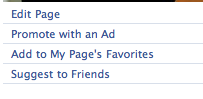
From your Page, click the Edit Page link under your profile picture:

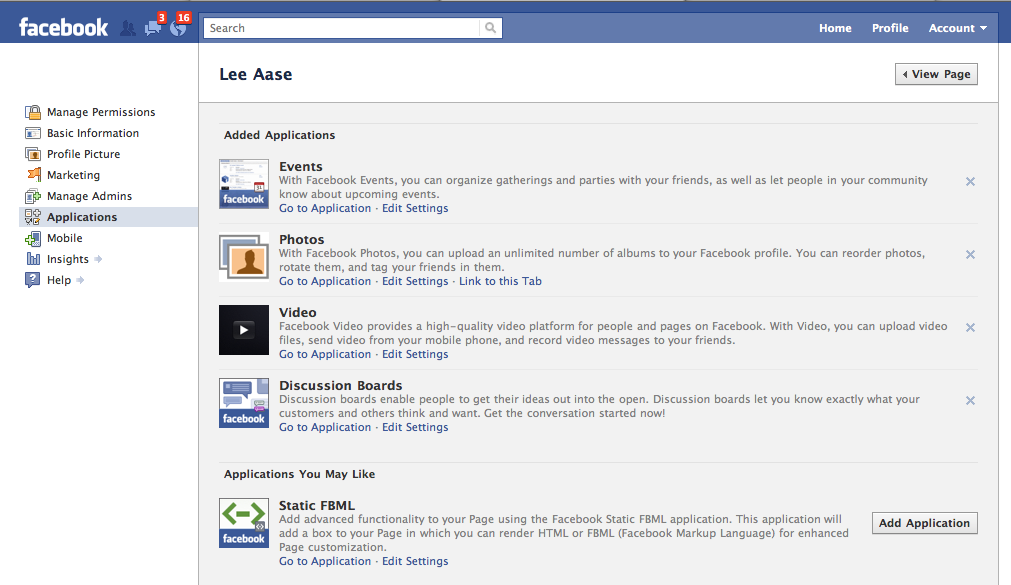
Then click the Applications link in the left navigation to see the applications you have already installed. Your screen should look something like this (click to enlarge):

Click on the Add Application button for the Static FBML application. If for some reason the Static FBML application isn’t listed, you can search for it by clicking the Browse more applications link at the bottom of the list.

Continue reading “Facebook 240: 5 Steps to Customizing Your Facebook Page”